
How to Use the DTF Gang Sheet Design Tool?
What Is a Gang Sheet?
A gang sheet is a single print-ready sheet that holds multiple designs arranged together and printed in one run.
Rather than submitting each design as a separate order, you can combine them onto one sheet, saving time and making the most of your print space.
Artwork Requirements
The gang sheet builder accepts a wide range of file formats to work with whatever artwork you have on hand.
Accepted file types: PNG, PDF, SVG, JPG, PSD, AI, and EPS
Resolution: After uploading, the software automatically evaluates your file's resolution using colour-coded indicators. You'll also be notified if any designs are overlapping on the sheet.
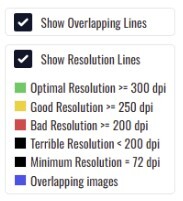
Image Editing Tools
-
Background Removal
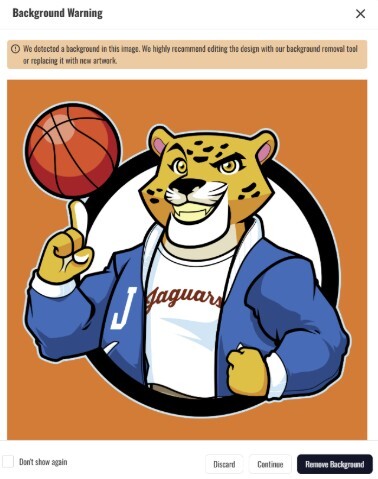
Not a designer? No problem. The built-in background removal tool uses AI to detect and strip backgrounds automatically when you upload your artwork. Results may vary depending on image complexity.
-
AI Upscaling
Working with a lower-resolution file? Select your uploaded image and click Upscale to improve its resolution before printing.
-
Halftone Remover
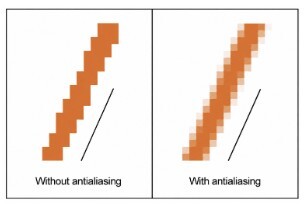
DTF printing requires 100% opaque colour; it doesn't handle halftones well. Low-resolution images, AI-generated artwork, or upscaled files can sometimes introduce halftones, which may cause anti-aliasing (a faint halo effect around design edges). Use the halftone remover tool to reduce this by adjusting the angle and density settings.
-
Crop Tool
Adjust your image's shape, aspect ratio, dimensions, or crop it into a circle directly within the editor.
-
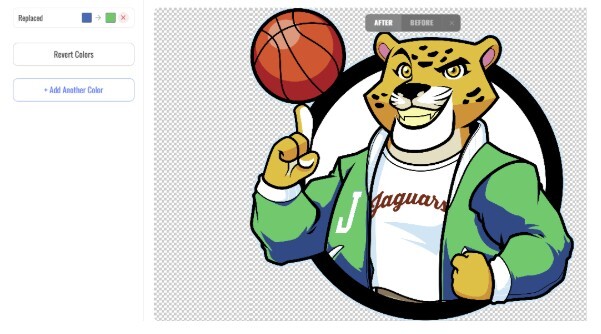
Colour Editor
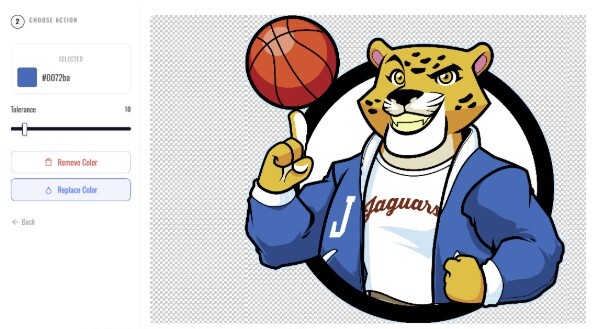
Need to swap or remove a colour? Select any colour in the image editor and replace or delete it as needed. Results may vary by file type.
-
Background Colour (Visual Aid)
If your design is hard to see against a transparent background, head to Settings and enable the Visual Aid feature to apply a temporary background colour to your entire gang sheet or within the image editor. This is a display-only setting and will not affect your final print.
-
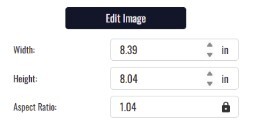
Image Sizing
Resize designs directly on the gang sheet, or use the edit tool for more precise control over dimensions.
Filling Your Gang Sheet
You have a few ways to populate your sheet:
-
Click an image repeatedly to add copies one at a time.
-
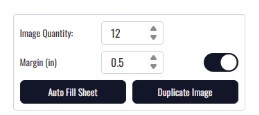
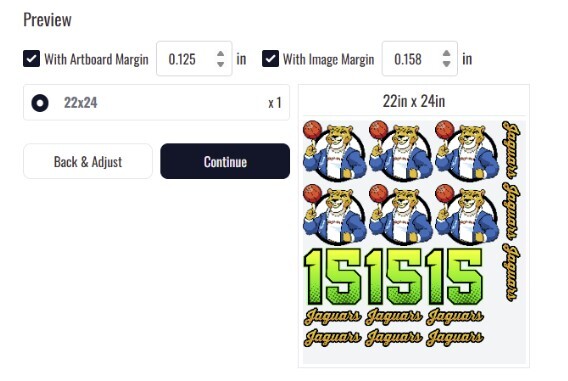
Use Auto Fill: enter the quantity you need, set your margins, and let the tool place them automatically.
-
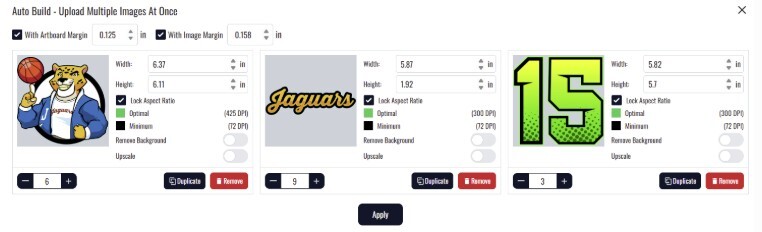
Use Auto Build for multi-design sheets: upload your images, set quantities per design, and click Apply. If your designs exceed the selected sheet size, the layout adjusts automatically to fit everything.
Mock-Up Tool
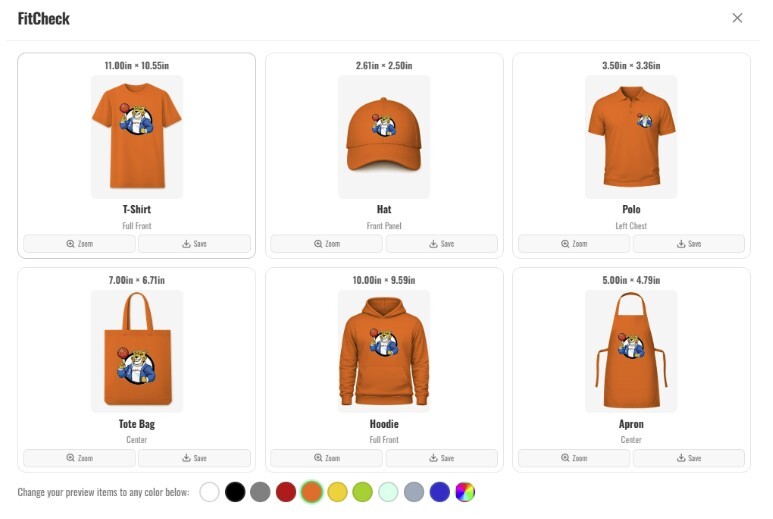
Want to preview your design on an actual garment before ordering? The FitCheck tool generates a visual mock-up so you can see how your artwork looks on different apparel styles and colours. Previews can be downloaded directly from the builder.
Adding Text
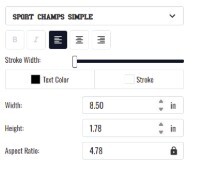
The Add Text tool lets you incorporate typography directly into your gang sheet. Choose from 20+ fonts, customize colour, size, and aspect ratio, and add a stroke if needed.
Changing Gang Sheet Size
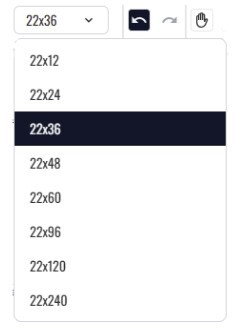
Started with the wrong dimensions? Sheet size can be updated directly in the builder without losing your current layout or starting from scratch.
Note: Once a design has been added to the cart, the sheet size can no longer be modified.
Reordering Previous Designs
Log in to your account, navigate to the DTF product page, and select Previous Designs to access your past gang sheets.
Click any saved sheet to add it to your cart automatically. From there, select Edit to review or make changes before adding it to the cart again.
Note: The dimensions of previously ordered gang sheets cannot be changed.